Redeem Monster Maker Codes
Exact claim flow, casing tips, and troubleshooting when a community code fails.
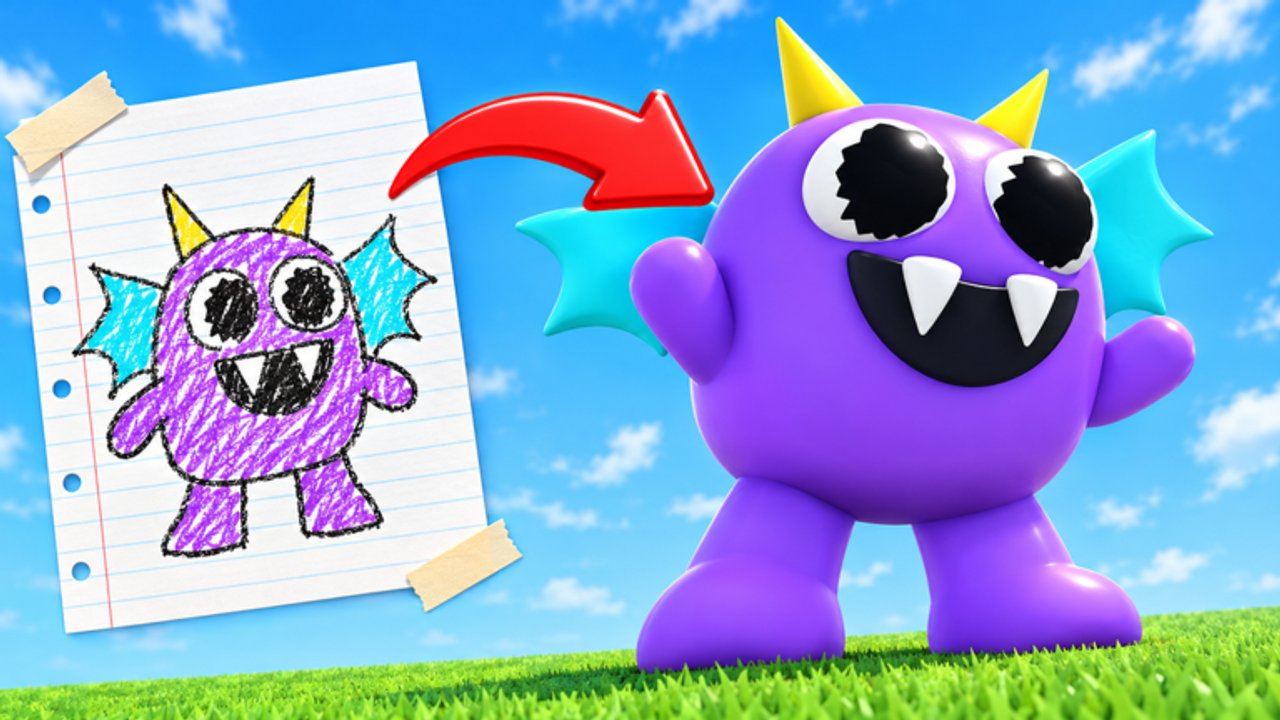
Redeeming Monster Maker codes should take under a minute once you know where the panel lives. This guide walks through a reliable claim flow for the Roblox creature sandbox, explains why community strings fail, and shows what to do with coins, gems, XP boosts, and blueprints after they land. Pair it with the live list on the Codes Hub.
Monster Maker (Place ID 137036689378411) lets you design monsters from parts, shop for cosmetics, and test animations. Codes accelerate that loop—but only if you redeem carefully and verify rewards in your inventory before spending.
Before you start
- Launch Monster Maker from the official Roblox page—not a lookalike experience.
- Wait until you are fully in a server (up to 24 players). Redeem UIs often fail while the place is still streaming assets.
- Keep a notes app open with codes copied exactly from the Codes Hub table.
- Turn off aggressive clipboard cleaners that strip punctuation—
NEWUPDATE!needs its trailing exclamation mark. - If you just heard about a brand-new code from chat, still cross-check the hub; typos spread faster than real drops.
Step-by-step redemption
1. Open the shop or rewards area
After spawn, look for buttons tied to Shop, Rewards, Gift, or Codes. Early builds placed redeem near currency displays (coins/gems). November 2026 UI passes sometimes shuffle icons—if your client differs, check November 2026 and hover labels carefully.
2. Find the text field
Open the codes panel and tap the empty field. On mobile, tap once and wait for the keyboard; double-taps can paste partial strings. On desktop, click the field, then paste with Ctrl+V / Cmd+V.
3. Paste one code at a time
Enter a single string such as GEMBOOST100, COINMACHINE, FREEMONSTER, LEVELUPFAST, or NEWUPDATE!. Do not stack commas. Submit with the confirm button—do not mash repeatedly.
4. Read the response
Success messages usually mention the reward type. Failures say invalid, expired, or already redeemed. Screenshot failures if you plan to ask friends; it beats vague “it didn’t work” reports.
5. Confirm inventory and buffs
- Coins / gems — check currency counters immediately.
- Basic Blueprint — open the workshop create flow and see if a starter plan appears.
- 2x XP (30m) — note the timer; plan a focused building or mode session before it ends.
Then leave the panel so you do not accidentally resubmit.
Community-reported codes to practice with (Nov 2026)
These remain community-reported—verify in-game, expect expiry:
| Code | Reported reward |
|---|---|
GEMBOOST100 | 100 Gems |
COINMACHINE | 500 Coins |
FREEMONSTER | Basic Blueprint |
LEVELUPFAST | 2x XP for 30 minutes |
NEWUPDATE! | 75 Gems + 200 Coins |
Full context and safety notes stay on the Codes Hub.
Troubleshooting invalid codes
Already redeemed — Many codes are once per account. Alts are against fair play advice we endorse; do not build a farm.
Expired — Update marketing codes die quietly. Strike them mentally and wait for the next patch wave listed under Updates.
Typo / casing — Recopy from the table. Avoid OCR screenshots that turn O into 0.
Wrong experience — Confirm the title screen says Monster Maker and the creator group matches Monster Maker Community.
Laggy submit — Hop servers, disable VPN experiments, and retry once. Spamming can soft-lock the button until rejoin.
UI missing — Some soft tutorials gate menus. Finish the first workshop prompt from Getting Started, then reopen shop tabs.
What to buy after redeeming
Do not blow gems on the first glowing spike pack. Use Best Parts for a spend order: readable head, stable torso, flexible limbs, then eyes/stickers. If your goal is horror, skim Scary Designs before shopping. Blueprint rewards pair well with How to Make Monsters so you learn typing on a workable base.
XP boosts are perfect for learning controls and pushing through early unlocks while the timer runs. Queue a mode session from Game Modes if play objectives grant XP too.
Scams that pretend to be “code tools”
Nobody needs your Roblox password to gift Monster Maker currency. Decline:
- Sites that ask you to log in through a clone page
- Discord bots promising private code lists after you run an executor
- “Generators” with surveys and adware
- Friends-of-friends selling “stacked gem codes”
If you were researching automation, read the Scripts Hub first. This wiki will not publish loadstrings.
Mobile vs desktop differences
Mobile players should paste from Roblox’s permitted clipboard flow and avoid third-party keyboards that insert spaces. Desktop players can keep the Codes Hub open in a browser beside the client. Console players (if available on your account’s platform mix) should prefer selecting characters from an on-screen keyboard carefully—auto-correct is the enemy of NEWUPDATE!.
Aftercare checklist
- Write down what each successful code granted.
- Spend with a plan from the Tier List Hub.
- Save your monster before experimenting with new kits.
- Retest stand/walk/hit/slam/stomp/tail whip after equipping new limbs.
- Return to the Codes Hub later instead of refreshing shady lists hourly.
Redeeming well is a small skill that protects your economy and your account. Claim what is live, ignore what is dead, and put rewards into monsters you are proud to show in community browsing.
Frequently Asked Questions
Quick answers for builders, codes, and game modes.
Where is the Monster Maker codes button?
Look near Shop, Rewards, Gift, or currency UI after you finish loading into a server. Labels can shift after patches—hover icons carefully.
Can I redeem the same code twice?
Usually no. Most promo codes are once per account. An already-redeemed message means you are done with that string.
Why does NEWUPDATE! fail?
Include the trailing exclamation mark, avoid extra spaces, and confirm the code is still live on the Codes Hub list.
Do I need scripts to redeem codes?
No. Codes use the official in-game panel. Script “auto redeemers” are unnecessary and risky—see the Scripts Hub.
What if the codes UI is missing?
Finish early tutorial prompts, rejoin a fresh server, and check Updates for UI moves. Then retry with a single paste.